For university students and researchers who frequently typeset mathematical notation and care about output quality, LaTeX is nearly unavoidable — it has a long history (over 40 years since 1984), a stable community, a complete package ecosystem, and it’s the dominant format for academic paper templates and submission systems. But anyone who has actually used it tends to have a love-hate relationship with it: long compile times, error messages that can fill an entire screen, digging through package documentation just to place a single figure, package conflicts that eat up an entire afternoon. These are hurdles for beginners and everyday annoyances for veterans, since its syntax ultimately traces back to design thinking from the 1980s — inevitably clunky and hard to debug to anyone used to the concise syntax of modern languages.
So in recent years, people have started trying to redesign typesetting systems from a modern perspective, and Typst is one of the most notable results. Written in Rust, it’s built around fast compilation, concise syntax, and friendly error messages, while still keeping the mathematical typesetting power and programmable flexibility that LaTeX is known for. For anyone who has long been tormented by LaTeX, Typst’s arrival feels like a ray of light — but it’s still a relatively young project, and its ecosystem, packages, and community resources are still growing fast. Whether it can truly replace LaTeX remains to be seen.
In this series, I want to work from my own hands-on experience with Typst to document its syntax design, how it differs from LaTeX, and how to handle common typesetting scenarios (papers, resumes, slides, and more) — while also being honest about the pitfalls I’ve hit and the parts that still feel unfinished. I hope this helps anyone who’s fed up with LaTeX’s compile speed but still can’t give up its typesetting quality find another option worth seriously considering.
Introducing Typst
Typst was started by Laurenz Mädje and Martin Haug in 2019, backed by their company Typst GmbH, and was officially released as open source in March 2023, with its core written in Rust. The official GitHub project description puts it plainly1:
[…] designed to be as powerful as LaTeX while being much easier to learn and use […]
That’s also been its target audience from the start: people who have been tormented by LaTeX but can’t give up its typesetting quality.
Syntactically, Typst uses a Markdown-like markup design and distinguishes between markup, math, and code modes, which you can freely switch between as needed. It has built-in support for math formula typesetting, tables, bibliography citations, slides, and other common academic and document needs, so you no longer have to hunt down packages and stitch them together the way you do in LaTeX. Compilation uses incremental technology that only recomputes the parts that changed, paired with real-time preview in the online editor, at millisecond-level speed. Error messages also point directly to the location of the problem, instead of dumping an unreadable wall of log text the way LaTeX does.
Typst is currently still in beta, with frequent version updates (it had reached 0.15.1 as of July 2026), but whether you’re writing a paper, resume, slide deck, report, or book, it already has enough features and stability for practical use — which is exactly why this series wants to help you get started with it.
The table below lays out a comparison of a few common typesetting systems:
| Aspect | Word | LaTeX | Typst |
|---|---|---|---|
| Typesetting approach | WYSIWYG | Markup language + compilation | Markup language + compilation |
| Learning curve | Low, most people already know it | High, verbose syntax and a sprawling package ecosystem | Medium, syntax more concise than LaTeX |
| Compile/preview speed | Instant (it’s WYSIWYG by nature) | Slow, often a second or more | Fast, incremental compilation mostly at the millisecond level |
| Math formula typesetting | Average, basic formula editor | Industry standard, most complete feature set | Built-in support, more concise syntax than LaTeX |
| Precise layout control | Weak, layout easily breaks | Strong | Strong |
| License/cost | Paid (Office subscription or one-time purchase) | Free, open source (LPPL, etc.) | Free, open source (Apache 2.0) |
| Best suited for | General documents, business files | Academic papers, books, long-form documents | Academic papers, resumes, reports, and anyone wanting a more modern development experience |
:
In short: Word is easy to pick up but layout is hard to control, LaTeX has the strongest layout but a high cost, and Typst is trying to find a sweet spot between the two.
Installing Typst
How you install Typst depends on your operating system. The official project provides native binaries, and it can also be installed through the common package managers on each platform, with short commands either way. Once it’s installed, it’s worth also installing the VS Code extension for syntax highlighting and live preview, which makes for a much better development experience. Below are the installation steps for macOS, Linux, and Windows in turn, followed by how to install and set up the extension.
macOS
The easiest way on macOS is via Homebrew:
1 | brew install typst |
Once installed, you can confirm the version with the following command to make sure the installation succeeded:
1 | typst --version |
If everything went well, the terminal will print version information similar to:
1 | typst 0.15.1 (a1b2c3d) |
Linux
Linux doesn’t have a single unified official package source, so the installation method varies by distribution. You can first check Repology to see whether your distribution’s package repository already includes Typst, then install it with the corresponding package manager (for example, pacman -S typst on Arch).
If your distribution doesn’t have a ready-made package, you can also install it directly through the Rust toolchain:
1 | cargo install --locked typst-cli |
Once installed, confirm it the same way with the version command:
1 | typst --version |
Seeing output similar to typst 0.15.1 (a1b2c3d) means the installation succeeded.
Windows
Windows users can install it via the built-in winget:
1 | winget install --id Typst.Typst |
Once installed, open a terminal (PowerShell or CMD) and type:
1 | typst --version |
Seeing a version number printed, such as typst 0.15.1 (a1b2c3d), means the installation succeeded and the command has been correctly added to PATH.
VS Code Extension
After installing the CLI, it’s worth installing the Tinymist Typst extension in VS Code. It’s currently the officially recommended, most fully integrated Typst language service, providing syntax highlighting, live preview, autocompletion, and error hints. Installing it is straightforward: open VS Code’s Extensions panel (Cmd/Ctrl + Shift + X), search for Tinymist, and click install — no extra configuration needed before you can start editing .typ files with live preview.
The Online Editor
If you’d rather not install anything locally, typst.app is the official online editor — you can start writing directly in your browser, with an experience quite close to Overleaf, which LaTeX users are already familiar with.
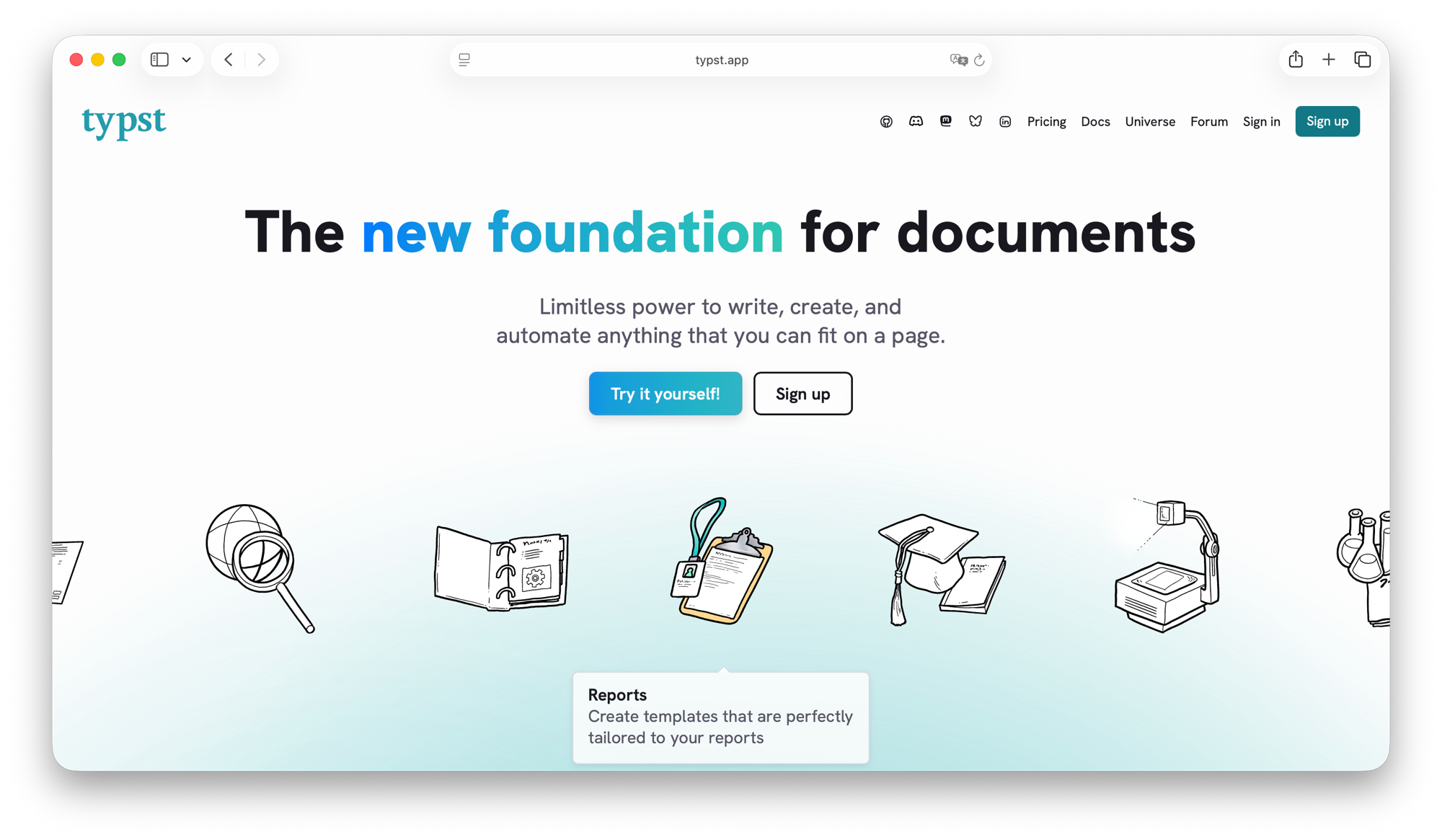
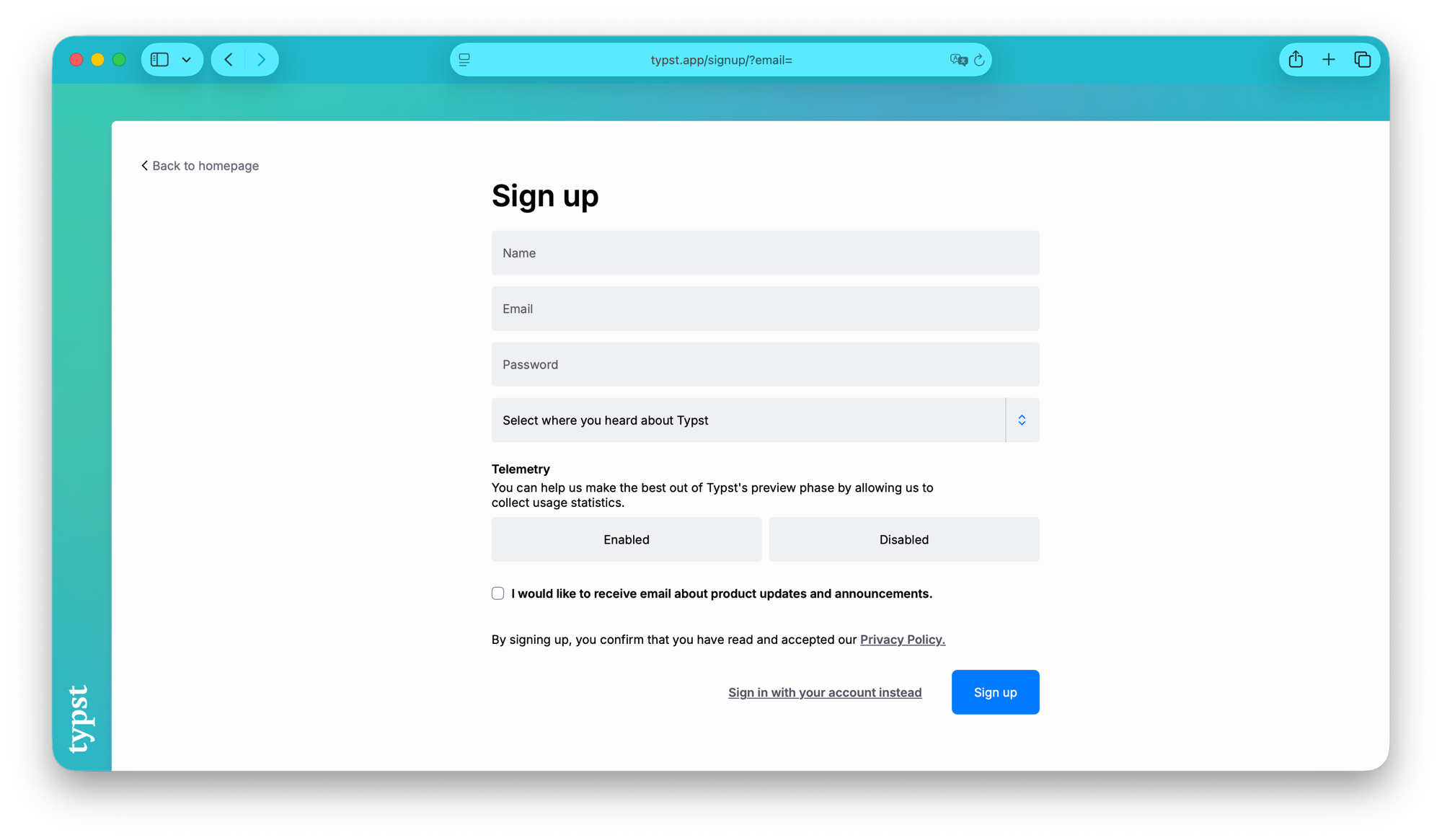
After landing on the homepage, click Sign up and complete registration; the free plan already gives you basic storage space and collaboration features.
After logging in, you can go straight into the official Playground to practice. The editing view is split left and right: you write Typst syntax on the left, and the right side renders the typeset page in real time — change a single character and the right side updates almost instantly. The toolbar at the top has built-in buttons for bold, italic, underline, headings, lists, math symbols, code blocks, mentions, comments, and other common features, so you can get started without memorizing commands first. The top right also lets you Share a link directly or export the file.
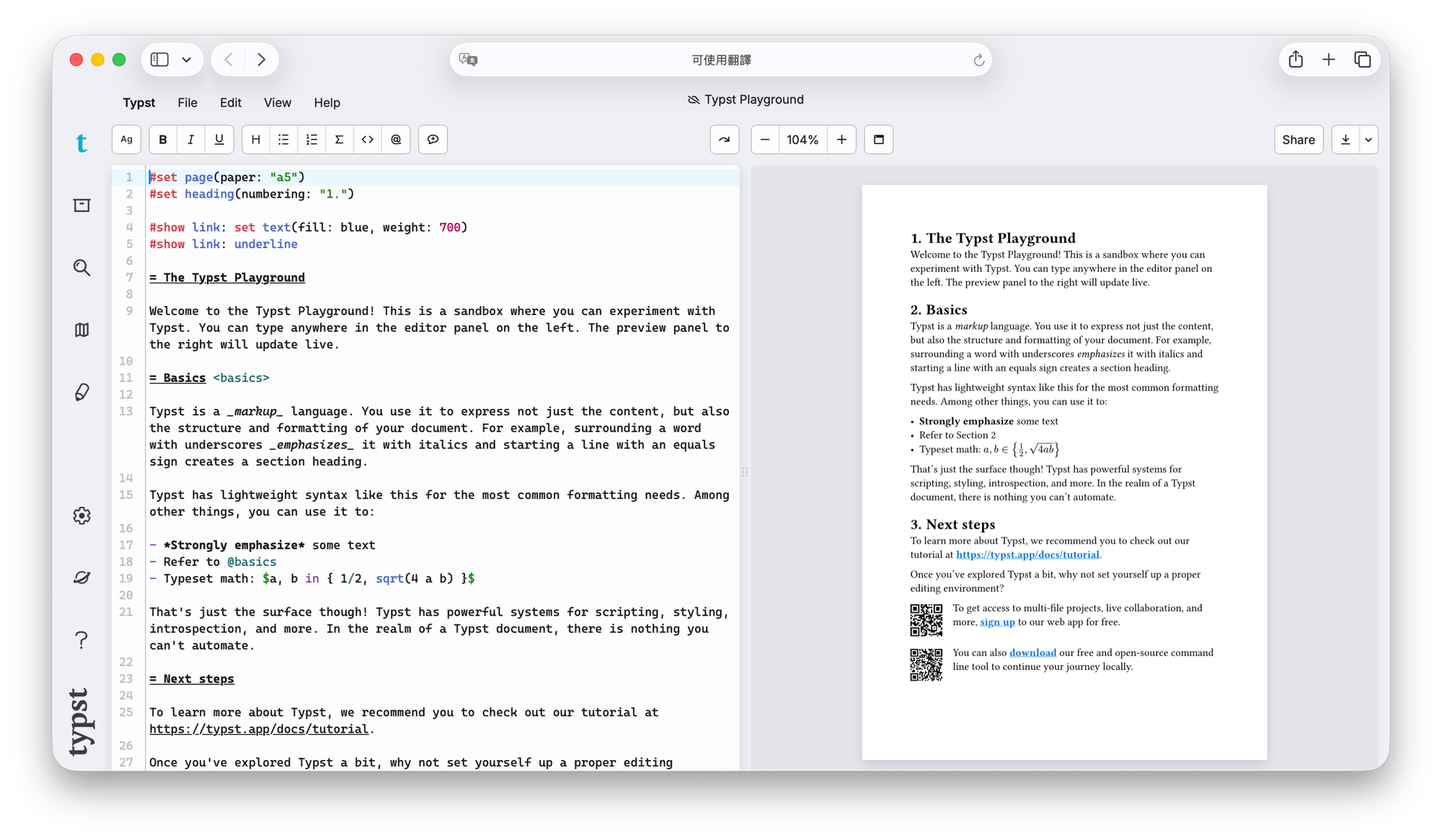
For anyone still on the fence about setting up a local environment, this is the lowest-friction way to get started. Once you’re comfortable with the syntax, it’s never too late to switch to the CLI + VS Code local workflow described earlier — the .typ files written in either place are fully interchangeable.
Summary
This post is essentially the starting point of the whole series: starting from LaTeX’s pain points, we met Typst, a new Rust-built option focused on fast compilation and concise syntax, and got the environment ready — whether that means installing the CLI plus the VS Code extension on macOS, Linux, or Windows, or skipping local setup entirely and writing directly in typst.app. The next post will move into Typst’s actual syntax, starting from the most basic markup and comparing it step by step with LaTeX!
1. See the official repo for details. ↩